In my last article, Google Maps Tricks for Campus Walking Directions, I briefly touched on an exciting new service from Google called Google Map Maker. Essentially the service turns Google Maps into a location-based wiki. Users from around the world can update and change the information displayed on the production version of Google Maps (e.g. maps.google.com, you Google Maps-based campus map, or mobile maps on iOS or Android). This crowd-sourcing is helpful and, importantly, gives schools an easy way to add their campus buildings and/or update the information already available. Unfortunately, it also gives other users, mainly well-meaning ones, the similar ability to edit information about your campus.

The Warning: Community Edits Can Go Bad

So the warning should be pretty obvious. If this tools allows users to edit Google Maps you’re going to want to review the changes to make sure all the information about your campus is correct. Bad information can affect not only local users but, importantly, visitors (prospects?) who are the most likely candidates to lean on a service like Google Maps. We’ve already seen a case where the main thoroughfare for our downtown campus got cut, at least visually, in half (it still hasn’t been fixed) and roads were added where sidewalks should be (fixed but some directions to buildings got buggered up).
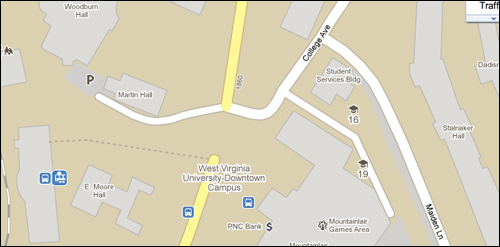
Google Map showing University Avenue missing a segment of road.

How To Monitor Community Edits Made with Google Map Maker

So how do you monitor these edits? Google Map Maker provides a handy tool that allows you to subscribe to changes in a designated areas. I don’t think this tool is foolproof but it’s better than nothing. To monitor changes do the following:

  1. Go to Google Map Maker and find your campus.
  2. Get to the appropriate zoom level so your entire campus fits in the window.
  3. Click “Community Edits” in the top light-blue bar.
  4. Click “Manage Subscriptions” in the light-grey bar.
  5. Click “Add a neighborhood.”
  6. You should now have an info bubble hovering over your map view. Provide a name for the “neighborhood.” Something like Institution’s Campus might be good. Leave the default which should be “Subscribe to the map view”. Click “Next.”
  7. You can provide why you know the area though I’m not sure it’s helpful for anything. Click “Next.”
  8. Then choose the appropriate time interval that you want to be notified of changes. I have “hourly” for both and never get all that many emails. I figure this is the best way to keep on top of changes quickly and get ahead of other reviewers if necessary (since anyone can help approve changes).
  9. Click “Save.”

I’m not positive I’ve seen every change that has been added to Google Maps so that’s the only reason I suggest this method may not be foolproof.

Want to Learn More About Google Map Maker?

I know their are a few folks following me on Twitter (*cough*@dmolsen*cough*) who have been using Google Map Maker for their schools. If you need a refresher or want to learn more about it there is a webinar tomorrow, June 9, all about it. Visit the ”Google Map Maker Introduction” webinar page to learn more. You must RSVP to take part in the webinar. The Google Map Maker team has also expressed interest in a campus tour so make sure to tweet the team @googlemapmaker to let me know if you want them to visit your campus. And, last but not least, their is always the Google Map Maker user guides to help your team make the most of the product.
This article was posted

I may be late to the party on this particular trick but until this past weekend I didn’t realize you could get building-to-building directions for our campus on Google Maps. They’re not the most accurate because we don’t have sidewalks listed on Google Maps yet (see further down for how we should address this) but something is better than nothing. I’m curious if this trick works for other campuses.

The Trick

To see if you can take advantage of this trick do the following:

  1. Zoom into  your campus on Google Maps.
  2. Assuming your buildings are shown, use the names of two buildings as listed on Google Maps (this is important, they have to match exactly what’s shown) and enter them as the start and end points for  your directions.
  3. Click the person icon to make sure you get the walking directions.
  4. Click “Get Directions.”

Now, fingers crossed, their should be walking directions between the two buildings you searched for. Important: This is not foolproof. We have a dorm listed as ‘Bennett’ and Goole Maps won’t provide directions since other places in town match the name first. It’s really called ‘Bennett Tower’ so hopefully we can get that updated.

Examples

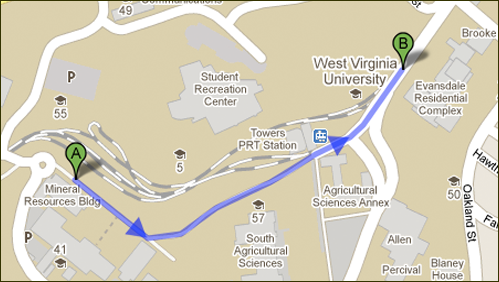
Here’s an example of walking directions between our Mineral Resources Building and the Evansdale Residential Complex. It uses one of the few sidewalks we have listed.

A Google Map showing walk between two buildings.

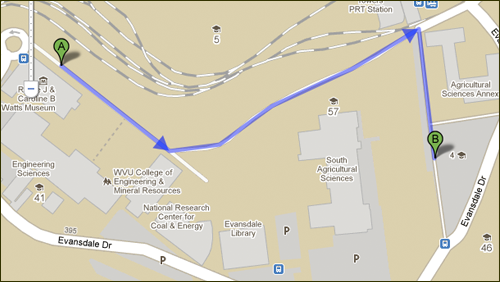
You can even use Google Maps to get directions from a building to a parking lot (and I assume vice versa).

A Google Map showing walk between a campus building and a parking lot.

It’d be great if Google Maps understood we were a campus and point driving directions to take visitors to a metered parking lot first and then walking directions from there to a campus building. Unfortunately, it doesn’t look like that’s supported. If anyone from Google reads this though… it’d be fantastic and really useful.

Adding Sidewalks with Google Map Maker

For the most part I’m sure the walking directions you’ll get out of Google Maps will still follow the roads on campus. That’s definitely not the best solution for your users. Well, enter in Google Map Maker for adding sidewalks and other campus map data to Google Maps. Google even highlights schools and universities as ideal users for their new service. Think of it as a map-based wiki. Essentially the service allows you to use your browser to submit changes and updates to Google Maps that can be reviewed and, hopefully, added. You can add sidewalks, roads, building footprints and points of interest (maybe that statue of your mascot?). You can also use it to edit information that is already found on the map like building names or, even, carpet area if you happen to have that info. Why a campus building would have a syllabus (another bit of data you can supply) is beyond me though…

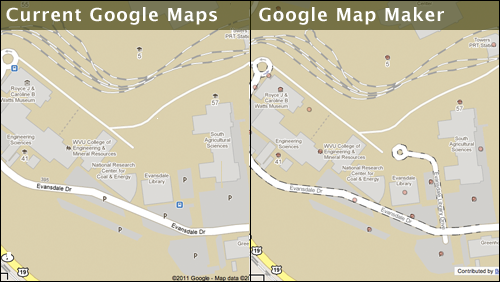
Their are already a few students and staff members obviously updating information around our campus. Note the addition of the campus road in the right-panel that’s waiting for review.

Current Google Maps versus Google Map Maker Comparison of the Evansdale Campus

More Work…

Yes, this brings a whole another layer for campus-related data to maintain and manage in a 3rd party tool. That being said, it might prove to be a good summer project for an intern to get all your information updated before school starts up again in the fall. From our experience, a campus map see a huge uptick in use at the beginning of the semester. I’m sure that use extends to Google Maps now that they’ve started listed campus buildings. And, hey, there’s no reason why you can’t use Google Maps for your mobile campus map ;)

Hat tip to Steven Spriggs (@stevenspriggs) for the “wiki” description of Google Map Maker.

Update as of 9.15pm on May 23 (same day original article was posted): changes made to Google Maps this afternoon via Google Map Maker have already made their way to the regular version of Google Maps. It looks like name changes can happen very quickly.

This article was posted

I’m thrilled to announce that Mobile in Higher Ed is now a part of the BlogHighEd community. BlogHighEd acts as a blog aggregator bringing together many different perspectives on higher ed in one place. It’s a great resource for any higher ed professional looking to keep up with the latest and greatest. I’m really humbled to be included in a great incoming class that joins the already established stalwarts of higher ed blogging. Many thanks to Brad Ward (@bradjward), Matt Herzberger (@mherzber) and the rest of the BlogHighEd community for including me. I encourage you to check out the current blogroll, to add BlogHighEd to  your RSS reader, and follow @bloghighed on Twitter.

This article was posted

Note: This post is using the old version for Google Analytics for the example. I haven’t gotten used to the new version yet… and, frankly, really dislike the new UI. The new version only has iPhone traffic as a default segment anyway.

As universities and colleges make decisions on how they’re going to pursue their mobile strategy it’s important to know not only how many users are using your site (that handy “Mobile” option under “Visitors”) but what content they’re actually attempting to use. Luckily, Google Analytics provides a nice built-in feature to learn about their habits.

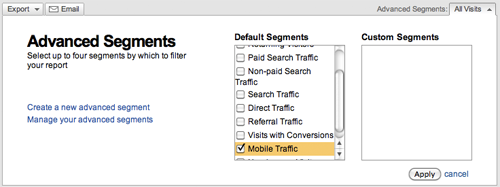
To access it simply go to the profile for the website you want to review mobile use for. Then in the top right you should see “Advanced Segments”. It’ll look like this:

Click on “All Visits” and you should be given the option to add default or advanced segments. Scroll down the list of default segments. Check the “Mobile Traffic” option and click “Apply”. It should look like this:

The mobile traffic segment checkbox under the 'Advanced Segments' feature of Google Analytics.

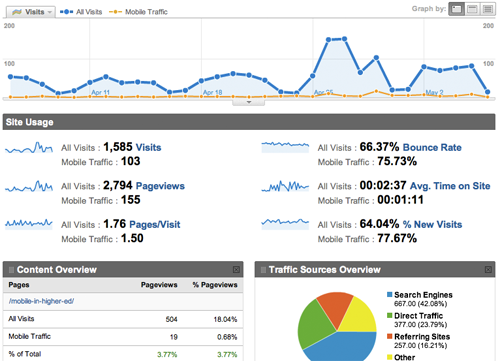
Once that segment is applied your views should now include stats regarding content use by users on mobile devices. The following screenshot is from my personal blog and shows all traffic versus mobile traffic.

Screenshot showing the mobile traffic versus all traffic for my blog.

So if you’re a data junky like me hopefully this helps as you make decisions for your institution (or, heck, your department or whatever) on what you should pursue.

This article was posted

Over the last year or so we at West Virginia University have used QR codes in several projects (one example). After pulling in some numbers and comparing them against a similar tool I think I’ve finally come to a conclusion on them. QR codes are probably not worth implementing. They are, in retrospect, a bit like putting a round peg in a square hole. They look cool, they’re the latest and have buzz but there is always that niggling feeling they’re not right for our audience. If part of rolling out a project includes directions on how to download software then we’re probably doing it wrong.

So what’s the similar tool? Text Messaging (aka SMS)

The only thing we’ve done with QR codes so far is share links to mobile-optimized websites. We’re not sharing complex data like business cards or the like. Which might be a good thing since Google, as part of their Charts API, suggests using version 4 of QR codes. The version number of  a QR code determines how much data can be encoded in it based on the overall number of columns & rows in the code. For version 4 that’s 33 rows x 33 columns which means a maximum possible encoding of 114 alphanumeric characters. That’s well within the 160 alphanumeric character limit of text messages. So from a data storage/transfer standpoint QR codes and text messaging are on equal footing and, for us, can do a very similar job.

The Numbers

Below are the number of uses of each technique for two recent projects. I’ll be very upfront by noting that neither project allowed either technique equal advertising so the numbers could be skewed a bit because of this. I’ve noted in each project description what the differences were.

Tournaments Project

Our Tournaments project was designed to allow us to engage fans of West Virginia University around the Big East & NCAA tournaments. QR codes were featured on the website, on our digital signage throughout campus, as well as in two videos that helped hype the project. We only listed the text message information on the website itself. Both techniques simply shared the web address for the site. Because of the lack of advertising for the text messaging I was shocked that they performed at almost double the rate of the QR codes (65% vs 35%). As for content performance… it looks to be pretty even so I’m not sure their is any real difference between either technique.

One anecdotal story about both techniques for this project… When my boss was showing her son how to get a QR code reader onto his iPhone and then how to take the picture to get to the website she happened to mention the text message option and he asked why she just didn’t tell him that easier option earlier.

If you want to try it out for yourself simply text WVUTOURNEY to 41411.

Fan Shirt Contest

The other recent project was a contest where users could vote for next year’s official fan shirt for West Virginia University. Initially we were only going to use the text messaging and QR codes to test the efficacy of using only digital signage for these sort of projects. Basically, which one of these techniques best paired with our very robust digital signage system. As it turns out the text messaging information made it onto some printed material as well. How much that threw off the numbers I’m not sure.

While voting from the web dominated text messaging accounted for a respectable 6.1% (701) of the votes. QR codes only accounted for 0.3% (38) of the votes.

How We Did It: TextMarks

We’ve  been creating text message-based services for a while. The most important is probably our application status check. For all of these we have used TextMarks. It’s a dead-simple service with lots of options and, by paying a small fee, can be ad free. They’re currently offering a 14-day free trial. It can be used to shoot mass messages to groups, targeted messages to individuals, or respond to a query with a very simple message a la our Tournaments project. The best feature to me as a developer though, and how we implemented the voting, is the REST-based SMS API. Basically you can use SMS as an interface into your web applications.

Conclusion

This is not to say that QR codes should be completely avoided. I suspect we’ll continue to use them. It’s just that if you really want folks to get your web address easily onto their phones then look into using text messaging with a service like TextMarks as a powerful “back-up” to QR codes . Echoing something similar that Jason Grigsby (@grigs) said about native apps versus browsers ,

Not every phone will have a QR code reader on it but they will all support text messaging.

Well, that and the notion that sometimes old tech is the best tech. I definitely encourage you to play around with text messaging and see if it fits into your mobile and/or communication strategy.

And after thinking on this a bit more I think the following observation is also worthy of mentioning:

Users have shown they’re willing to use their mobile device to access content or take an action… just probably not from a QR code.

Addendum: Tracking QR Code Usage

Back in the day I wrote a post about using bit.ly to track QR code usage. For these projects we used Galvanize. Galvanize is a PHP class that allows you to track clicks with Google Analytics without using JavaScript. So what we did was encode the unique address http://tournaments.wvu.edu/qr/ in the QR code. This address was just a PHP script that used Galvanize to record the pageview and then would redirect the user to the real page for the campaign. It made it very easy for us to track usage via Google Analytics and for everyone on the team to get access to the data.

This article was posted