Building off of my Re-introduction post I wanted to share some of the things that I learned as I built the new, responsive edition of dmolsen.com. I figure that my experience with doing this might provide some insight to other folks looking to integrate new techniques and technology into their own projects. The source for the site is on GitHub. All projects start with requirements…

Dropping WordPress & Going Static with Octopress

I’ve been toying with the idea of dropping WordPress for a while. While it was easy to get up and running it never seemed like it was a good fit for me. It has to be updated constantly, the post editor is a serious pain in the ass, and it sucks down RAM. Between not really getting enough traffic to justify my RAM-driven hosting costs and the fact that the post creation process was more of a hinderance than a help I decided to make a big change with this redesign. Out went WordPress and in came old-school static HTML.

One big plus of using a CMS like WordPress though is having the ability to use templates. To make sure I still had this feature I looked for a good static site generator. It would give me the flat files I wanted but, hopefully, make it easier to maintain my site. I finally settled on Octopress.

To be clear, Octopress definitely has its own drawbacks. Upgrading Ruby on my Mac was a serious headache and I’m not a big fan of Liquid-based templates. That said, I feel like I’m back in control of every aspect of my site. I was able to quickly stub out my own templates and design. I can now write my posts in Markdown, a format I love, and I can write whenever I have the desire too because the files are all local to my computer.

The 50K Performance Budget

The second major decision was setting my performance budget for the basic template for the site. Both Tim Kadlec (@timkadlec) and Clearleft (@clearleft) have written on this topic recently. See Setting a Performance Budget and Responsive Design on a Budget respectively. This is a technique that our team had used for our 2011 responsive holiday card website (sadly, it’s is no longer online). The budget for that had been 100K. For this site I wanted it to be 50K. A very aggressive goal but, hey, why not?

If you don’t count web fonts the basic template easily fits within my 50K budget. My CSS, JavaScript, images, and mark-up only add up to 39K. Cut out Google Analytics and Gaug.es and the page weight drops to 23K. Unfortunately, I’m a sucker for web fonts. Because of my lack of design skills as well as the large blocks of text that naturally make up a blog I knew type was going to have to be an important visual component of my site.

I ended up using two fonts, Roboto and Roboto Condensed, that total 69K. Combining that number with the other assets the total weight for the basic template for my site ends up being around 109K.

Did I blow my budget by including the fonts? Sure. But performance optimization is, like many things, a compromise. The type face makes a huge difference, I think. The 50K goal was completely arbitrary and aggressive but having a tight ceiling made me think more critically about design and feature choices. In the future my performance budgets will also include things like total number of requests and a max time-to-document-ready threshold.

Sass is Snazzy

Sass, a CSS pre-processer, has blown up in our office. Between being baked into our new CMS, a Build Responsively workshop, and the introduction of CodeKit it seems like everyone here is using it. I hadn’t had the opportunity to use it but, since it is included as part of Octopress, I figured I’d give it a whirl. I love it. Here is how it helped me:

  • Being able to have a large number of SCSS files organized by which region of the page the styles affected that get merged into one file in production made the whole process of remembering where styles were and tweaking them that much faster and easier.
  • Variables meant that I could tweak a breakpoint and be assured every element affected by the change would be updated.
  • Nesting reduced what I had to type and, again, helped me organize my styles better.
  • I only used one mixin in my project but I can see how, for example if you needed to create cross-platform gradients, it could make your life a whole lot easier.

My site is simple and I barely scratched the surface of what Sass can do. And, to be clear, you don’t have to use Octopress to take advantage of Sass.

SVG: A Different Kind of Logo

One of the challenges that I set for myself when I started redesigning this site was to try to create a logo that required only CSS. Unfortunately, using CSS to clip text to a circle isn’t very well-supported across browsers. Once I had settled on the clipped look, though, I really wanted it so I looked at another solution, SVG. Within two hours I went from basically not knowing anything about SVG to the hot logo that you see today. It’s really just a simple text file with a linked web font.

While straightforward to build I don’t think I’ve made the best use of SVG. The web font works on most SVG-supporting browsers but fails, for example, on the default browser on Android 4.2. This results in a shortened logo. Also, by linking to a web font I took what is a nicely performant 0.7K text file and essentially turned it into an 18K text file-web font combo. An image would be way better in this case. That said, I think SVG offers promise as a format. Being high-DPI and responsive-layout friendly are definite plusses. By the way, take a look at the source for the header and you can see how I provide a fallback for browsers that don’t support SVG at all.

If you’re interested in learning more about SVG and how you might be able to take advantage of it check out David Bushell’s (@dbushell) two SVG articles, A Primer to Front-end SVG Hacking and Resolution Independence with SVG.

Other Interesting Bits

This post is getting quite long! Some other things that I found useful/interesting as I put together the new version of my site:

  • HTML5: Rather than use a JavaScript solution for backwards compatibility you might notice that I actually use <divs> nested within the HTML5 elements. All of my styles hook into these elements. It’s not the most semantic solution but relying on JavaScript seemed odd to me.
  • nth-child(): This pseudo-selector melted my brain for a little bit (for the son of a math teacher I really suck at math) but once I got a handle on it was incredible useful. The navigation at small viewports is completely driven by nth-child(). Chris Coyier (@chriscoyier) has a great write-up about it on CSS Tricks.
  • :before & :after combined with ‘content’: I had no idea the CSS property content even existed. Again, Chris Coyier with a good overview. The bars in the nav and pips for lists use it. Blockquote also uses content but it uses the open-quote value. Note, if you use the open-quote value make sure blockquote:after is set to content: no-close-quote so that other <blockquote>s get the appropriate type of opening quote.
  • HTML5 Canvas: One requirement that I gave myself was that the image on the right must randomly change when the site is being viewed in larger viewports. What better way to achieve this than canvas? After some false starts I ended up using toDataURL() and background-image (the JavaScript). If you look at the source for this page you’ll see a lot of random gibberish in the #canvas-container div. That’s that image.
  • @-ms-viewport: Last but not least is the use of the @-ms-viewport rule for Windows RT. Tim Kadlec recently did a good write-up about issues with IE10 on Windows RT, IE10 Snap Mode and Responsive Design. I found it really useful for getting IE10 to properly register the viewport on device rotation.

Wrapping It Up

This article is primarily about the requirements that I set up for myself as I developed the new version of this site as well as some of the technical features I implemented. What’s missing is anything that is really about responsive design. Their is now a follow-up post, Media Query-less Design, Content-based Breakpoints & Tweakpoints.
This article was posted

I haven’t written anything of any serious consequence for this blog in seven or eight months. Obviously, a lot of my available writing time was spent on my chapter for Smashing Mag’s The Mobile Book but I had another reason for the long hiatus. The Mobile in Higher Ed “brand” left me feeling a little hemmed in regarding the topics I could cover. Or, at least, the topics that I originally thought I should cover.

In early 2012 I started building a lot of tools (see Detector, Throttle & ua-parser-php). This blog seemed to simply became a series of posts related to tool updates. Frankly, to me, that was sort of boring and not befitting of the original mission of the blog so I stopped writing them. For example, I never posted about another tool that I developed, lazyBlock.

Ultimately, the problem was that I put too much pressure on myself to produce a certain type of content and, when the inspiration never came, I just plain avoided the site and writing. So, in the same way that my Twitter account is “just me,” I sort of have to accept that my blog will also be “just me” and reflect my interests in the moment.

The redesign of my blog reflects this change in thinking. Gone are references to Mobile in Higher Ed. I now feel like I don’t have to keep every post within those two constraints, Mobile and Higher Ed, which was part of what was contributing to my writer’s block. I will have my tool updates, their will be posts about mobile web-related technology and their will be higher ed-related content. It’s just that now I know I don’t have to fit all of those things into one post.

Thank you for sticking with the blog through the lean times. I hope I can reward that loyalty moving forward. If you’re interested in the behind-the-scenes of the re-making of the blog check out the other new post today, Lessons Learned Building the New dmolsen.com: Static, A Performance Budget, Sass & SVG.

This article was posted

Later this month or in early December you’ll be able to read my contribution to Smashing Magazine’s (@smashingmag) latest printed piece, ”The Mobile Book.” I’m honored to have been asked to join a fantastic line-up of writers and then given the freedom to write a chapter about a topic that I think is important in this age of the always connected device, web performance. The short description:

Although Responsive design per se has provided a great fundamental concept for designing mobile-optimized websites, the core ideas that make up these concepts pre-date the mobile revolution. In this chapter, Dave Olsen reviews what it takes to optimize mobile experiences in terms of performance. How do we keep responsive websites lightweight? What do we need to know about caching, lazy loading, latency? How can we start using RESS? Device detection or feature detection? Also, how do we develop and test our websites for performance? This chapter answers all these questions and more.

The contributors to the book are a Who’s Who list of the leaders in the mobile web space. Smashing Magazine provides a handy Twitter list of authors but they are:

  • Jeremy Keith (@adactio) with the foreword
  • Peter Paul-Koch (@ppk) covering ”What’s Going on in Mobile?
  • Stephanie Rieger (@stephanierieger) covering ”The Future of Mobile
  • Trent Walton (@TrentWalton) covering ”Responsive Design Strategies
  • Brad Frost (@brad_frost) covering ”Responsive Design Patterns
  • Dennis Kardys (@dkardys) covering ”Hands On Design for Mobile (UX Perspective)
  • Greg Nudelman (@designcaffeine) & Rian van der Merwe (@RianVDM) covering ”Mobile UX Design Patterns
  • Josh Clark (@globalmoxie) covering ”Designing With Gestures and Touch

Smashing Magazine put together some more information on the book as well as more details on each chapter.

Many thanks to Vitaly Friedman for giving me the opportunity to contribute to the book. Also, thanks to him and the rest of the gang at Smashing Magazine for their work editing and proofing the chapter as well as gently shepherding me across the finish line. Thanks to Tim Kadlec (@tkadlec) for his quality technical edits.

If you pre-order the book you’ll save 20% and get the eBook for free. Frankly, the book looks gorgeous (thanks to illustrations from Mike Kus (@mikekus)) and I know the content will be awesome so go order it today.  

This article was posted

With the release of the new home page for West Virginia University Detector is finally being used in production. Unfortunately, there were a few bugs that were uncovered with this move. v0.8.5 fixes these issues and I now feel comfortable most folks can use Detector in their own production environments. The issues fixed include:

  • a very rare bug where the cookie used to set-up a profile wasn’t properly cleared so a future visit would overwrite the profile with empty data.
  • the call to addUAToList() is now commented out. it became an unnecessary performance bottleneck.
  • profiles are now saved in directories that are based on the first two characters of the hash of the user-agent. this way one directory doesn’t fill up with a ton of files and thereby possibly affecting performance. more on this below.
But it’s not all bug fixes…

New Feature: Smarter Mustache Templating

One feature that I’m really excited about is the smarter fallbacks when using Detector with my fork of mustache-php (included in the Detector project). When using Detector and mustache-php to build a RESS-based website you can organize your Mustache partials based on Detector’s families feature. Essentially, Mustache looks for partials based on the browser’s family first and then fallbacks to a default directory of partials that’s shared amongst all the families. I’ve written a tutorial that explains how it all works.

With v0.8.5 I’ve added a wrinkle to that default behavior. If you set splitFamily to true in config.ini Mustache will still look for a partial based on the browser’s family first but then it will attempt to split the family name based on dashes rather than falling back to a default directory. This should give developers more flexibility when setting up families as well as limit duplicated partials. At least it did for us. A good example of how this feature might be useful is for delivering Retina images.

For the most part, the partials shared between a family set-up to address the layout needs of a Retina-capable mobile browser and the partials for a family set-up to address the layout needs of a modern mobile browser will be the same. Rather than duplicate these partials we can, with this new feature, simply set-up our Retina-quality family so that its name builds off of the latter family name. For example, the family name for the regular modern mobile browser might be ‘mobile-advanced’. We can then name our Retina-related family ‘mobile-advanced-retina’. Any partials shared between the two simply need to go in ‘mobile-advanced’ as partial requests that aren’t found in ‘mobile-advanced-retina’ will fall back to it first.

Early Stats

I’ve been very curious how Detector would perform once it was thrown into production. Most importantly, I wanted to know how many profiles it would create once a lot of different browsers could hit it. Performance has been fine. The profile numbers on the other hand have blown me away and they’re almost entirely driven by IE 7 and 8. Since we launched at midnight on Thursday, August 2nd our home page has had ~72,000 unique visitors and ~238,000 pageviews. This is a slow time of year for us though our traffic should ramp up quickly. Based on those ~72,000 unique visitors Detector has created 11,002 profiles. They take up 45MB of disk space. The kicker really is IE 7 & 8. Combined, IE 7 & 8 account for 7,952 of the 11,002 profiles (72.3%) . I find it incredible that there’s that much variation in IE user-agent strings. I guess Microsoft allowed anything to be stuck in the UA. For what it’s worth, IE 7 & 8 have only provided 25% of the visits during the same time period.

I’ll be keeping an eye on the disk usage. Maybe I’ll need to think about a garbage collection routine for old profiles. Otherwise things seem to be working well.

This article was posted

As I noted at the end of my last post, How to Build a Device Lab, getting devices is only half of the battle when trying to create a robust platform for testing your mobile websites. The other half is finding tools that allow you to test your websites quickly and easily. While reviewing tools the one thing that stuck out to me was that we were running tests from our devices over an, essentially, pristine WiFi connection. In the real world, our users would be stuck on clogged networks with varying levels of quality. Guy Podjarny’s (@guypod) presentation, The Mobile Difference In Numbers, does a good job of showing why we need to take network performance into account when designing our mobile websites. Therefore, modifying network speeds would need to play a larger part in our testing scenarios if we really wanted to know how well our mobile designs were working.

All of the tools that I found related to modifying connection speeds were focused on modifying the requests coming from only one computer. e.g. You’d have the piece of software installed on your computer and any request you made from that computer would be affected. When testing multiple, black-boxed devices (e.g. an iPhone, a Google Nexus, and a BlackBerry 9800) this scenario wouldn’t work. So doing what I do tend to do I built my own solution. Because of  how shim and Adobe Shadow work I decided to use an extra Mac that we had lying around as a WiFi access point. That way we could still use those tools and I could control the network speeds of the requests coming from our devices. Also, if it was set-up correctly, any of our designers could sit at their desks, testing and modifying their code, and update the network speed “on the fly.” So with that…

Introducing Throttle

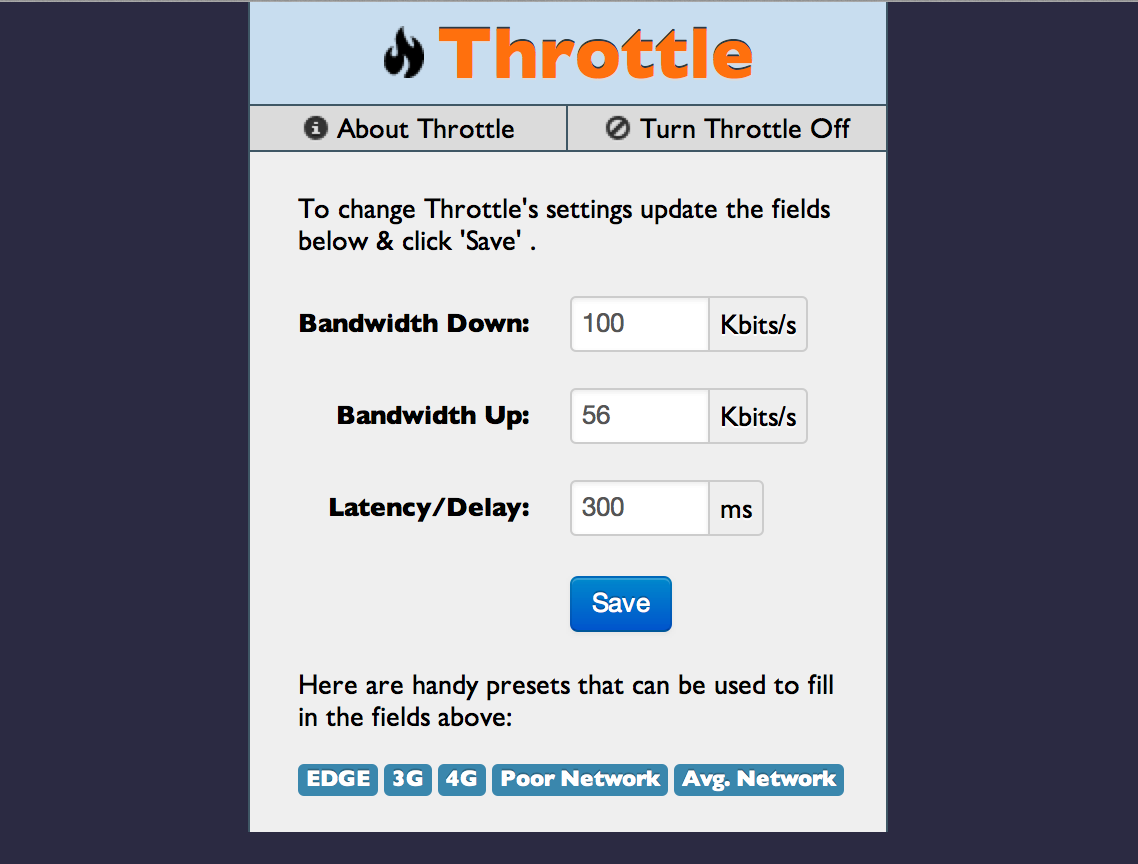
Throttle, available on GitHub, is a simple node.js app that allows you to simulate poor network connections (e.g. like a cellular connection) so you can test how your websites will perform. For example, testing a responsive website on a poor 3G connection without actually having to have a poor 3G connection. To use Throttle simply connect your Mac to ethernet, share that network connection via Airport, turn on Throttle, and any device connected to that WiFi access point will then be throttled to the the network speed you specify via a web-frontend. If you don’t have node.js on your computer don’t fret. It’s very easy to install so you can get Throttle up and running quickly.

It’s important to note that Throttle was designed to be used in conjunction with a device lab and products like shim or Adobe Shadow where a shared connection is expected. That has definitely influenced its design and test cases.

Throttle has some very simple features:

  • Web-based app so it can be accessed & updated from any connected device or computer
  • Modify download network speeds for connected devices
  • Modify upload network speeds for connected devices
  • Modify the latency, or delay, in the network connection for connected devices
  • Handy presets to quickly switch between network types
  • The machine Throttle is installed on still has a full-speed Internet connection
  • Works nicely with Adobe Shadow. I want it to get it to work with a stock install of shim.

Directions for setting up and using Throttle are now available on the project’s GitHub repo. You can check out a screenshot to see what you’ll be getting if you install Throttle. Throttle started out as a hack to shim so thanks to that project and the team at Boston Globe for the inspiration. Throttle uses Twitter Bootstrap and Glyphicons for design elements.

If you have any suggestions, criticisms or thoughts on Throttle please feel free to share them in the comments. I’m hopeful that I can get the current presets updated to appropriately reflect common connection speeds. I’m definitely open to suggestions for making that part of the system better.

This article was posted